Recordings
Importing audio
Import audio… (in the menu under Start recording’s small menu, in the Recordings pane and in the Overview’s “Get started” box) opens a dialog for one or more audio files; dropping files on the Recordings pane or the Overview does the same. Each file becomes one more recording of the archive, transcribed right away when transcription is on (one imported while a sync or another transcription runs is transcribed as soon as that job ends), then cleaned up, named and summarised like any other, and copied to the storage when it is on.
The files are imported one after another, beside whatever job runs. The menu’s status line reads “Importing 2 of 5” when no job runs, and the Recordings pane and the Overview show the progress with Cancel, which stops before the next file (the file in hand is not imported). Then a line says what became of the files: “3 imported, 1 already in the archive, 1 could not be read”.
- The formats. Ogg Opus (
.ogg,.opus,.oga) and MP3 are stored as they are, asaudio.oggoraudio.mp3. M4A, WAV, AIFF, FLAC, CAF and the sound of an MP4 or MOV are converted to one channel of Ogg Opus (audio.ogg, about 15 MB an hour; an hour of WAV is some 600 MB); the picture of a movie is not kept. A file that is neither, or that macOS cannot read, “could not be read”; one shorter than two seconds is “too short”. - The original is not kept. The file is copied or converted into the archive and left where it was; the archive keeps only its SHA-256, so the same file imported again is skipped, “already in the archive”. A file you deleted from the archive can be imported again.
- The date is the recording’s start: the creation date in the file’s own metadata (an M4A or MP4 usually has one), else the file’s creation date on disk, else the time of the import. The folder is named after it, like any other. The duration is counted from the stored audio.
- A recording that is also in Plaud is one recording, not two. A file you exported from the Plaud app is another encoding of Plaud’s recording, so it is recognised by its date and length instead: a file that starts at most two minutes from a Plaud recording in the archive and is at most two seconds longer or shorter (both a minute or more) is “already in the archive”. The other way round, while an import is in the archive the sync does not download the Plaud recording it matches, so its transcript, summary and edits stay with the import; delete the import and the next sync downloads Plaud’s. This holds only as far as the file’s date does: a file whose date is the day it was exported matches nothing and becomes a second recording, which Delete… removes.
- The name. The file’s name without its extension is the recording’s name until the summary model gives it a generated one, or you give it one.
Privacy says what is sent where.
Putting a file into the storage’s inbox
With a copy of the archive in S3-compatible storage, an audio file put anywhere under the bucket folder’s inbox/ (at any depth) by any program that can write to S3, a phone’s app, a script or the provider’s web console, is imported by the next sync of a Mac with the storage on, as above: the same formats (by the file’s extension, in any case; a file whose name starts with a dot is left alone), named after the file until it gets a generated name, transcribed, cleaned up and summarised in the same sync and copied to the storage like any other recording. Its start is the file’s own creation date, else the time it was put into the bucket. Once the recording is in the bucket, the sync deletes the file from the inbox; a file already in the archive is deleted too, once its recording is in the bucket. While it runs the progress reads “Importing from storage 1 of 2”. For example, with the AWS command line or with rclone:
aws s3 cp "Call with Ann.m4a" s3://<bucket>/notiario/inbox/ --endpoint-url https://<account-id>.r2.cloudflarestorage.com
rclone copy "Call with Ann.m4a" r2:<bucket>/notiario/inbox/
Two Macs on one bucket make the same recording of a file, so it is imported once. A file that is not audio notiario can read, or is too short, stays in the inbox and is downloaded once, not at every sync; the warning “N files in the storage’s inbox could not be imported” stays until you remove or replace it.
The recording detail
Double-click a recording in Recordings, select it and press Return, or press Open: its detail replaces the list. ‹ Recordings (or Esc) goes back, with the selection and the sort order as they were.
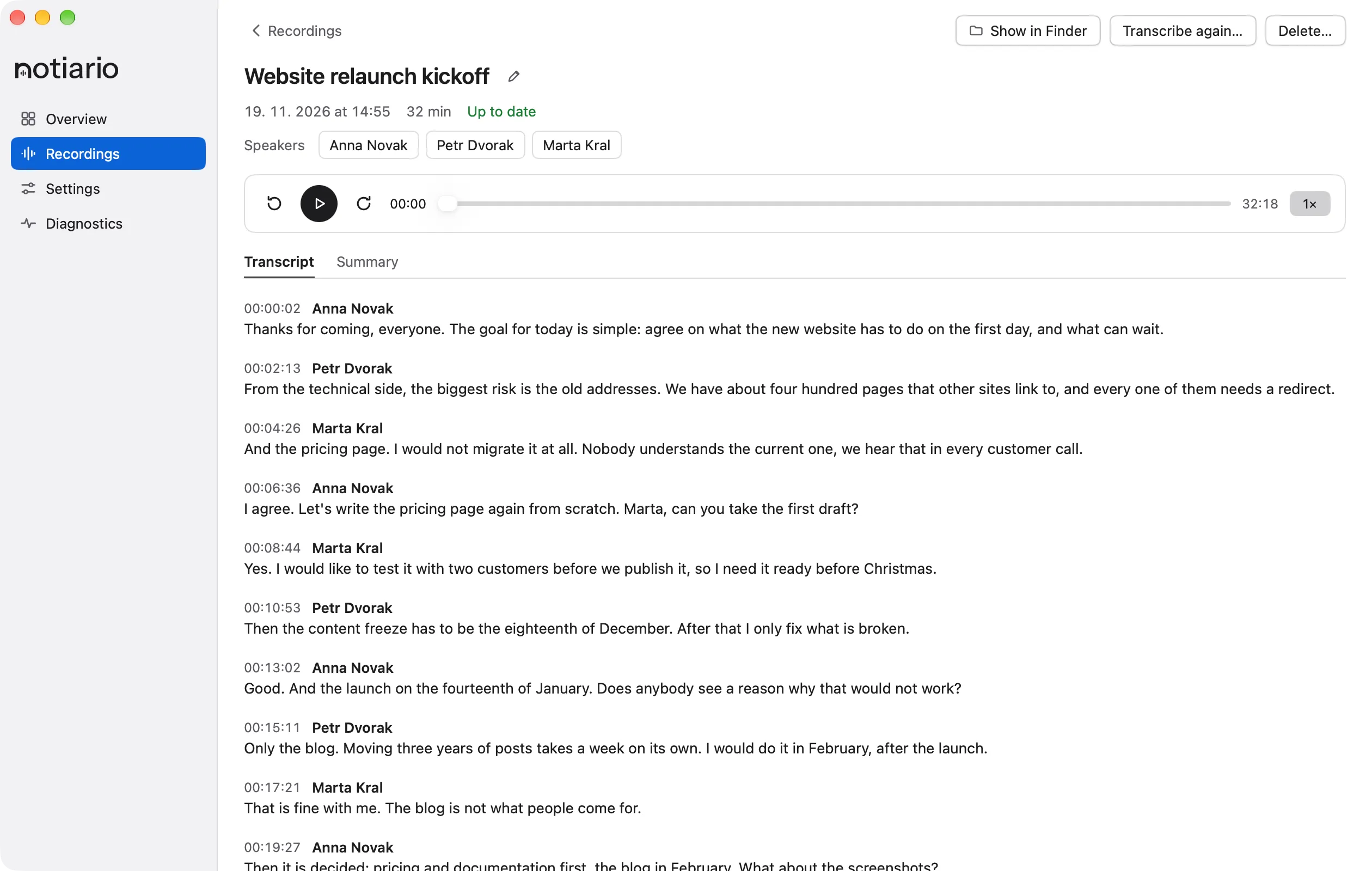
The detail shows the name you gave the recording, else the generated one, else its date and time. Under it are the date, the duration, the state, “Recorded on a Mac” for a recording made on this Mac or, with the storage, on another one, “Imported from a file” for an imported one, and one chip per speaker. Show in Finder opens the folder; Transcribe again… and Delete… work as in the list, for this recording.
Playing
The bar under the header plays the stored audio: 15 seconds back and forward, play and pause (also Space), the position, and the speed (1×, 1.25×, 1.5×, 2×). The turn being played is highlighted and kept in view; a click on a turn plays from its start. The audio keeps playing on the Summary tab and stops when you go back to the list or close the window.
A recording made on this Mac with a video shows the video above the player bar, in step with the transcript. Open video opens it in the default player.
Naming speakers
Click a speaker’s chip, or the speaker’s name in a turn, and type a name. An empty name removes it.
- A name for “Speaker N” is used in this recording only.
- A name for a speaker from the ElevenLabs speaker library is used in every recording, and the other transcripts are updated at once.
Speakers explains the library.
Correcting text
Hover over a turn and press Edit (or use its context menu), change the text, and press Save (⌘Return) or Cancel (Esc). A corrected turn is marked “edited”; Revert in its context menu brings back the text it had before.
Corrections are stored apart from the transcript, in a hidden file in the recording’s folder. transcript.md shows them; the raw and the cleaned transcript are never changed by them.
Renaming
Click the title (or the pencil next to it), type a name, and press Return or Save. The name is shown in the list and, with “Add the name to the folder” on, goes on the folder. It stays when the summary is written again or the recording is transcribed again. Save an empty name to go back to the generated one.
The summary
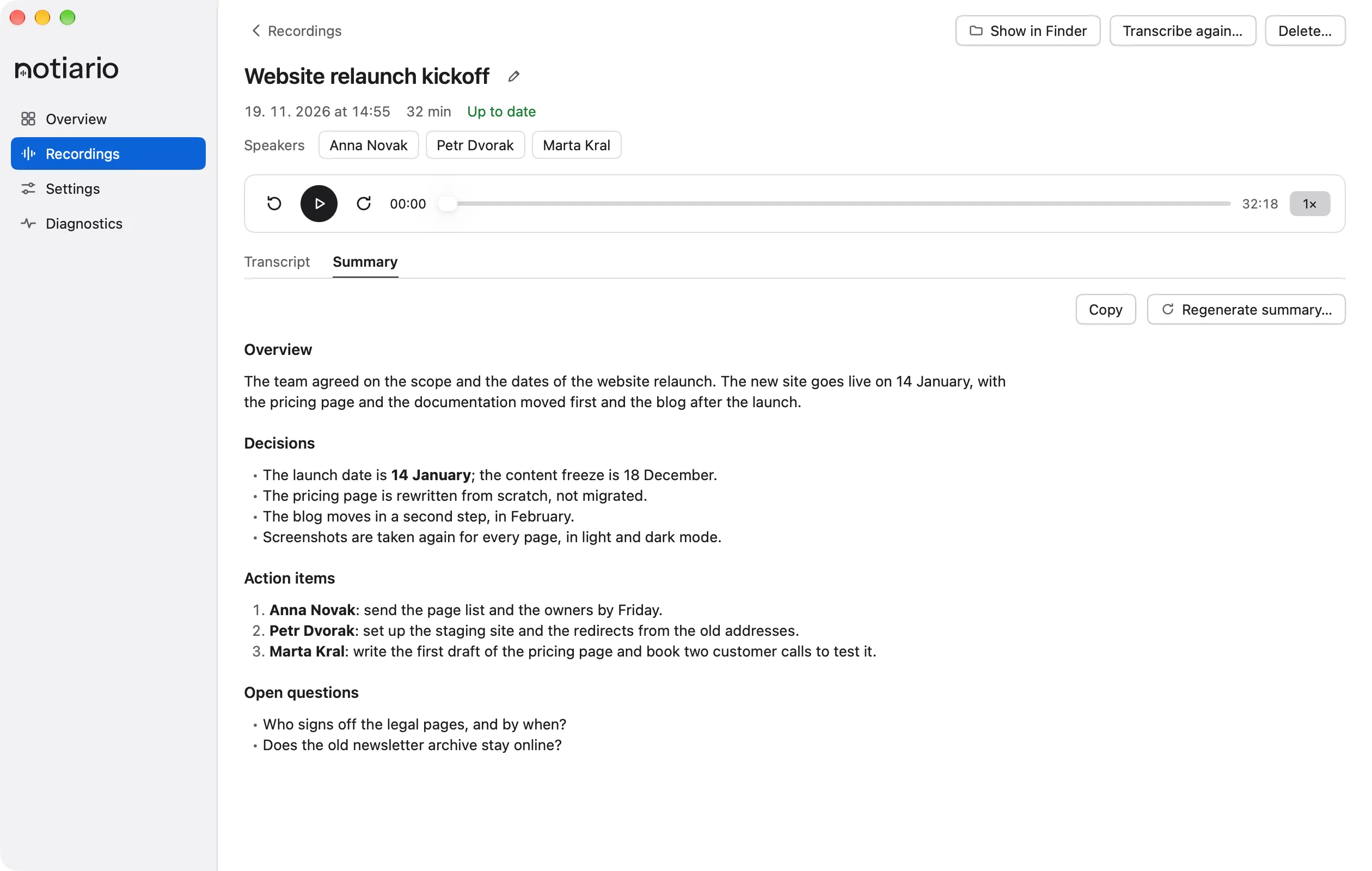
The Summary tab shows summary.md. Copy puts the whole summary on the clipboard as Markdown; any part of it can also be selected and copied.
When the transcript has changed since the summary was written (you corrected the text or named a speaker), the tab says so. Nothing is written again on its own. Regenerate summary… sends the transcript as you now see it to the summary model’s provider once, after a confirmation, and replaces the summary and the generated name, but not a name you gave.
Transcribing again
Transcribe again… replaces the transcript. Your corrections and the names you gave “Speaker N” in this recording are lost; the confirmation says so. The name you gave the recording and the library speakers’ names stay.
Deleting
Delete…, in the detail, under the list for the selected recordings, or in a row’s context menu, moves each recording’s whole folder (audio, transcript, summary, samples, video) to the macOS Trash after a confirmation. Nothing changes in Plaud; the confirmation says so when one of the chosen recordings is from Plaud.
- A deleted recording that is still in Plaud is not downloaded again.
- To undo, put the folder back from the Trash (Put Back in Finder); the next sync finds it and keeps it as before.
- The app never empties the Trash.
- With the storage on, Delete… also deletes the recording’s copy in the bucket and leaves a note there that it was deleted, so your other Macs move it to their Trash too; putting the folder back from the Trash uploads it again.
Only transcribed recordings are listed, so the others are deleted in Finder; a folder deleted that way is downloaded again.
Recordings deleted in Plaud
By default, a recording that disappears from Plaud stays in the archive and is marked as removed. With Move recordings deleted in Plaud to the Trash on (Settings, Plaud), a sync moves it to the Trash instead.
As a safeguard, when more than 5 recordings and more than a quarter of the archive disappear in one sync, or the list from Plaud holds none of the archived recordings (after logging in to another account, say), they are only marked as removed.
One job at a time
While another job runs (a sync, say), Save, Regenerate and Delete… are disabled and say which job is running. What you typed stays, so you can save when the job ends.